Notifications are how Exoserva tells you something happened — a new job booked, a payment received, a customer message waiting. Configure them right and your phone is a useful tool; configure them wrong and you’ll mute the app on day three. This guide walks through every channel, every event type, and the quiet hours / digest settings that turn the noise dial down without missing what matters.
Estimated time: 6 minutes
Before You Begin
- Any role with login access — every user can configure their own notifications
- (Optional) Browser permissions for desktop notifications (you’ll be prompted on first save)
- (Optional) The Exoserva mobile app installed if you want push notifications on your phone
Step 1: Open Notifications
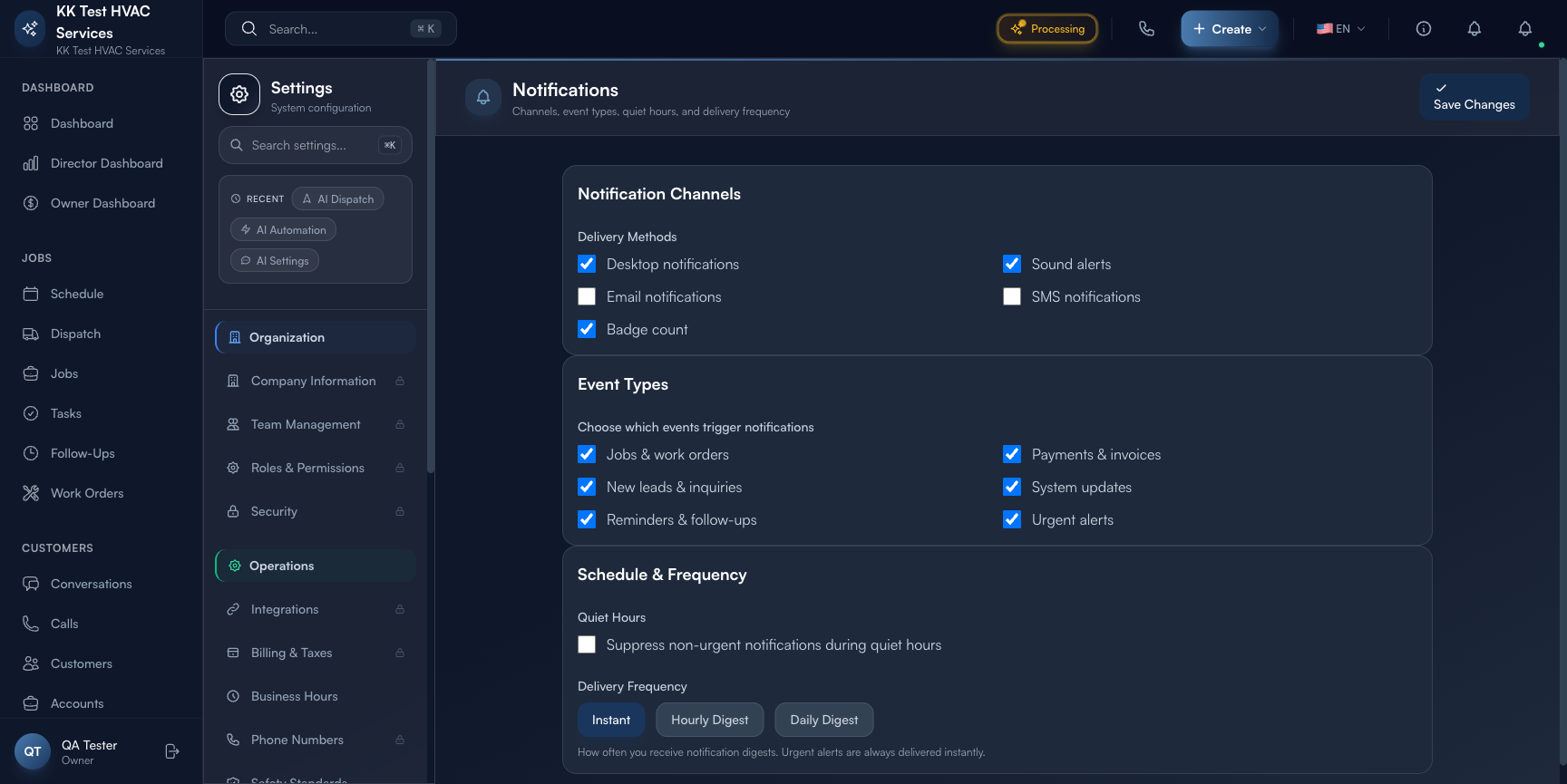
Press ⌘K to open Settings, then click Notifications under Personal. Direct URL: /settings/notifications. The page splits into three vertical sections: Notification Channels, Event Types, and Schedule & Frequency.
Tip: Notification settings are per-user, not per-tenant. Every team member sets their own. The Owner doesn’t dictate notification choices for the team — share recommendations through training, not by trying to override.
Step 2: Pick your Delivery Methods
The Notification Channels section has five toggleable delivery methods:
- Desktop notifications — banner pops up in macOS / Windows when you have Exoserva open in a browser tab; useful for active dispatchers
- Sound alerts — audible chime when a notification arrives; only useful if you sit in front of the screen
- Email notifications — landed in your registered email; good for digestable summaries, bad for urgent
- SMS notifications — sent to your registered phone; the right channel for urgent stuff (emergencies, payment failures)
- Badge count — the unread number shown on the Exoserva tab/icon
Most contractors enable Desktop + SMS + Badge count, leaving Email for digests only and Sound off (it gets annoying fast in a busy office). Adjust to your work style.
Warning: Don’t enable Sound + Desktop + Email + SMS for the same event class. You’ll get the same notification four times for one job and ignore all of them within 48 hours. Pick one channel per urgency level.
Step 3: Choose Event Types
The Event Types section is where you control what triggers a notification:
- Jobs & work orders — new job created, job status changed, job assigned
- Payments & invoices — invoice paid, payment failed, refund processed
- New leads & inquiries — Voice AI booked a job, web form filled, Thumbtack lead arrived
- System updates — Exoserva platform changes (rare; safe to leave on)
- Reminders & follow-ups — your scheduled tasks are due
- Urgent alerts — emergencies, SLA breaches, customer escalations (always delivered instantly regardless of digest setting)
Toggle on the categories that match your role:
- Owner — typically all six (you want to see everything for the first 90 days)
- Manager — Jobs / Payments / New leads / Urgent (skip Reminders unless you’re tasked-out)
- Dispatcher — Jobs / New leads / Urgent (Payments don’t usually need their attention)
- Technician — Jobs assigned to them / Reminders / Urgent
Tip: “Urgent alerts” is the one category you should never turn off, regardless of role. It’s reserved for genuine emergencies — a customer escalation that’s about to become a 1-star Google review, an SLA breach on a Priority 1 ticket. Trust the platform’s threshold for “urgent” rather than overriding it.
Step 4: Configure Quiet Hours
The Schedule & Frequency section controls when notifications can interrupt you:
- Quiet Hours toggle — when on, non-urgent notifications are suppressed during a time window you specify (start / end times in your tenant’s timezone)
- Quiet hours range — typical setup: 9 PM to 7 AM weekdays, all-day weekends if you don’t run weekend service
Urgent alerts override quiet hours and are always delivered instantly. Everything else queues up and is delivered at your next active period (or in a digest — see Step 5).
Warning: Quiet Hours is a personal sanity feature, not a team-wide on-call schedule. If you have on-call rotation, set it via Roles, Permissions, and Security Approval Levels and an Urgent → On-Call workflow — Quiet Hours alone won’t escalate to a backup person.
Step 5: Choose Delivery Frequency
The Delivery Frequency selector has three modes:
- Instant — every notification arrives in real-time. Best for active dispatchers and during your first 30 days when you’re learning the platform.
- Hourly Digest — non-urgent notifications batch into a single summary email/SMS at the top of every hour. Best after your first month for owners and managers.
- Daily Digest — once-a-day summary at a time you set (typically 8 AM). Best for technicians who don’t actively use the dashboard during the day.
Urgent alerts are always instant regardless of this setting — that’s the point of “urgent”.
Tip: Start with Instant for your first 2 weeks, then switch to Hourly Digest once you’ve calibrated which categories matter. Most owners report a 60-70% drop in distractions with no missed important events on Hourly.
Step 6: Save and verify
Click Save Changes at the top-right. Then verify your changes by triggering one of each notification type you enabled:
- Jobs: create a test job, confirm the notification arrives
- Payments: mark a test invoice as paid (manual), confirm notification
- Urgent: harder to test — usually wait for a real one or ask support to send a test
If a notification doesn’t arrive when expected, check your browser’s notification permissions (Chrome: Settings → Privacy → Site Settings → Notifications), your phone’s per-app notification settings, and your email’s spam folder.
Step 7: Mute specific noisy events
If a single category is too loud (e.g. you don’t care about every system update), turn just that category off rather than reducing the whole frequency. Targeted muting is better than blunt-instrument silencing.
Real-World Example
Your first week using Exoserva you set everything to Instant + every channel + every event. By Wednesday your phone buzzed 47 times and you started ignoring it. You return to Notifications, switch to Hourly Digest for non-urgent, Instant for urgent only, turn off Sound and Email, leave Desktop + SMS on. Next week: you notice you actually pay attention to the notifications you do get (because they’re rare enough to matter), and you respond to customer messages 3x faster than the week before. The lesson: fewer signals = better signals.
What’s Next?
- Display Preferences & Theme — visual customization next door
- Conversations and Customer Chat — where customer messages land before notifying you
- Workflow Builder – Automate Your Operations — build event-driven custom alerts beyond the defaults
- Roles, Permissions, and Security — on-call rotation lives here, not in personal Notifications
Need help? Post in the Tech Support category or contact support@exoserva.com.