Hey, Vlad here, and the Workflow Builder is honestly one of the features I am most proud of building. Let me tell you why it exists. I spent months watching field service business owners do the SAME things over and over – sending a follow-up email after every job, assigning emergency calls to the nearest technician, chasing customers about overdue invoices, sending satisfaction surveys. These are all important tasks, but they are repetitive and they eat up hours of your day. The Workflow Builder lets you automate all of that with a visual drag-and-drop interface. Think of it like building with LEGO blocks – you snap together “trigger” blocks (what starts the automation), “condition” blocks (what to check), and “action” blocks (what to do). No coding required, no technical skills needed. You build it, test it, flip the switch, and Exoserva handles the routine while you focus on what matters – growing your business and serving your customers.
Estimated time: 20 minutes
Before You Begin
- An active Exoserva account with Owner or Admin role – automating workflows affects your entire business, so admin-level access is required
- A basic understanding of your business processes – before you automate something, know how it works manually. Think: “What happens when I get an emergency call?” or “What do I do after a job is completed?” Write down the steps – that is basically your workflow
- At least one active integration (e.g., Thumbtack, Stripe, or Google Calendar) if you plan to use integration nodes – those tools need to be connected first. If you only want to automate internal things like notifications and job assignments, you do not need any integrations
- About 15-20 minutes of uninterrupted time – building your first workflow takes focus
Step 1: Navigate to the Workflow Builder
In the sidebar menu, click “Workflow Builder”. The page opens and you will notice it looks different from other pages – it is a visual building tool, like a drawing canvas where you design how your business runs automatically.
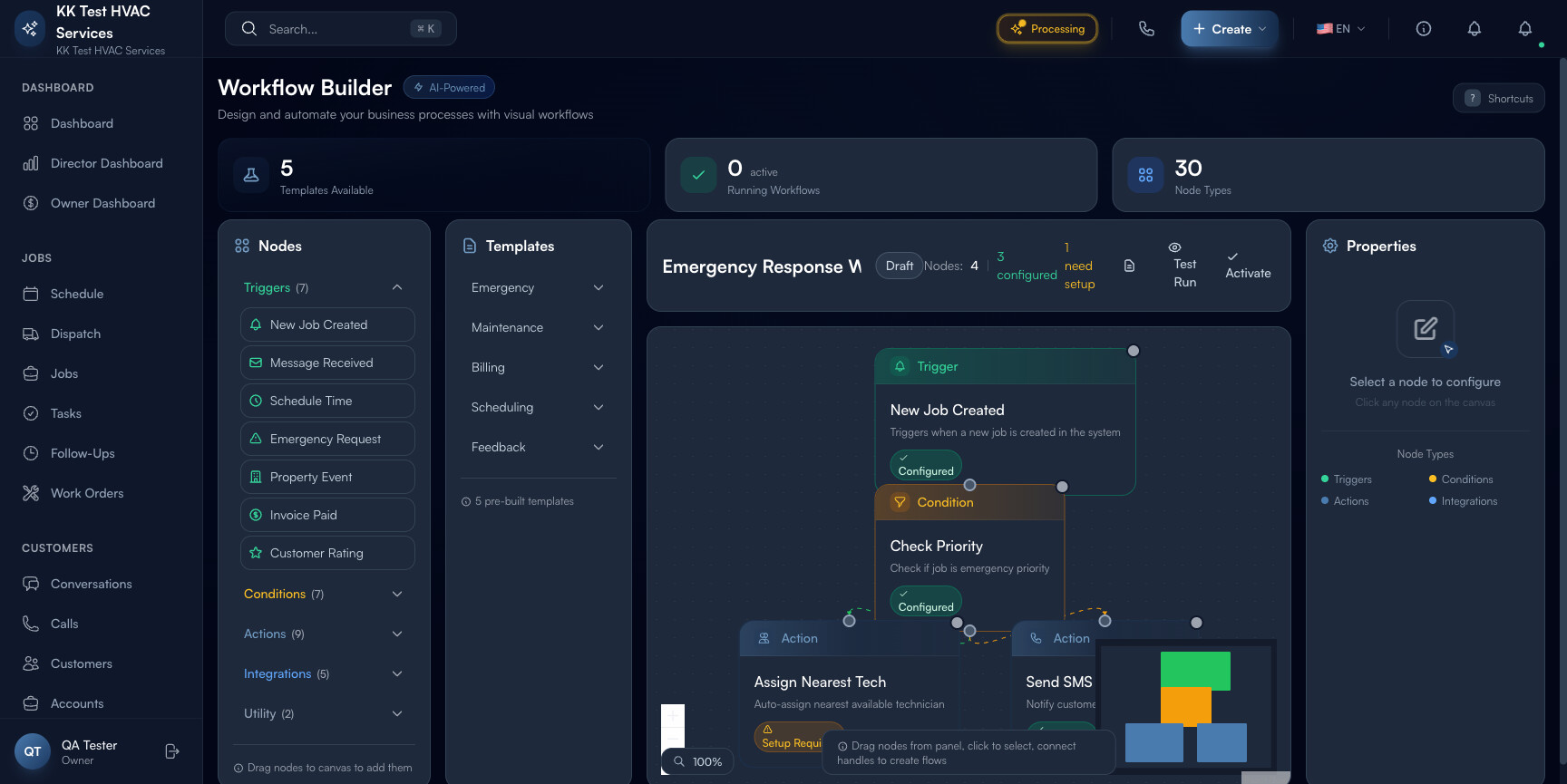
At the top, you will see the title “Workflow Builder” with an “AI-Powered” badge (bolt icon – meaning your workflows can use AI to make smart decisions). A subtitle reads “Design and automate your business processes with visual workflows.” Notice the “?” keyboard shortcut hint – press it to see all available shortcuts. A green pulsing “Auto-saved” indicator tells you your work is saved continuously.
Below the header, a Quick Stats Bar displays three metric cards:
- Templates Available – pre-built workflow templates you can use as starting points
- Running Workflows – how many workflows you currently have active (zero when starting out)
- Node Types – the total number of different building blocks available to drag onto the canvas
Tip: Press ? anytime to open the Keyboard Shortcuts modal. Key hotkeys: Delete (remove block), Ctrl+Z/Y (undo/redo), Ctrl+C/V (copy/paste), +/- (zoom), Space+Drag (pan canvas). No need to memorize these now – they will speed you up once you get comfortable.
Step 2: Start with a Pre-Built Template
For your first workflow, I STRONGLY recommend starting with a template rather than building from scratch. Templates already have the correct structure and are based on real business scenarios. Starting from scratch is like baking a cake without a recipe your first time – possible, but harder than it needs to be.
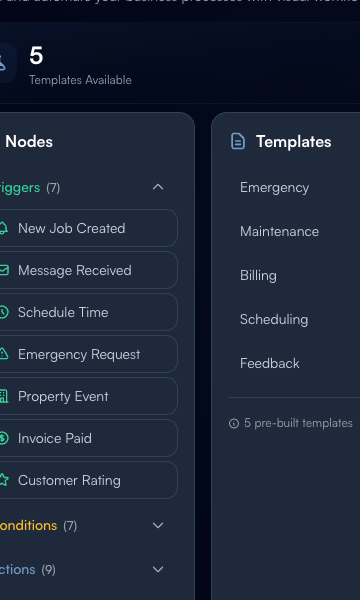
The Templates Panel appears on the left side of the canvas (click the document icon in the header bar if you do not see it). Five pre-built templates are available:
Emergency Response – Automatically finds the closest on-call technician for emergency jobs (like a burst pipe at 2 AM), assigns the job, and notifies everyone. I recommend starting with this one – it demonstrates every node type.
Tenant Request Flow – Automates tenant service requests: categorizes, checks priority, assigns a tech, notifies the property manager.
Invoice Collection – Sends automatic reminder emails when invoices go unpaid (3, 7, 14 days overdue). No more awkward phone calls.
Customer Feedback – Waits after job completion (e.g., 2 hours), sends a satisfaction survey. Happy customers get a thank-you; unhappy customers get escalated to a manager.
Maintenance Schedule – Triggers preventive maintenance on your schedule, e.g., “every 90 days, create a maintenance job for each property with an HVAC system.”
Click any template to load it. The canvas populates with pre-connected nodes, the workflow name updates (click to rename), and the status resets to “Draft” (not active yet).
From Vlad: I built the Emergency Response template based on a real situation from an early customer in Florida. A homeowner called about a flooded basement at 1 AM, but the job did not get assigned until the office opened at 8 AM. This template fixed that – emergencies now get auto-assigned to the nearest on-call tech within seconds, 24/7. That customer told me this single workflow saved them from losing their biggest property management contract.
Step 3: Understand the Canvas Layout
Let me give you a quick tour of the canvas layout. The Workflow Builder has three main areas side by side:
LEFT PANEL – The Nodes Panel (Your Toolbox): All your building blocks organized into categories. Drag nodes from here onto the canvas to build your workflow. We will cover node types in the next steps.
CENTER PANEL – The Canvas (Your Workspace): The main area where you place and connect nodes. It has a dot-grid background for alignment, zoom controls in the bottom-left (+/- and fit-to-view), and a minimap in the bottom-right showing your full workflow overview. The header bar shows the editable workflow name, status badge (Draft/Active/Paused), node configuration counters, and action buttons for Templates, Test Run, and Activate/Pause.
RIGHT PANEL – The Properties Panel: Appears when you click a node, showing its settings and details. Click empty canvas space to hide it.
If the canvas is empty, a helpful overlay guides you: “1. Drag a Trigger node to start,” “2. Add Conditions and Actions,” “3. Connect nodes and test your workflow.”
Tip: Hold Space and drag to pan around the canvas without moving nodes. Use scroll wheel or +/- to zoom. The minimap in the bottom-right is especially helpful for large workflows.
Step 4: Add Trigger Nodes – The Starting Point
Every workflow needs a starting point – a Trigger node. Triggers are colored green so they are easy to spot. Think of a trigger like a doorbell – when someone presses it (the event happens), the automation runs.
In the left panel, find the Triggers category. Seven trigger types are available:
- New Job Created – fires when anyone creates a new job. Use for confirmation texts, auto-assignments
- Message Received – fires when a customer message arrives. Use to auto-route or acknowledge
- Schedule Time – fires at a set time (e.g., every Monday at 8 AM). Use for reports, reminders
- Emergency Request – fires when a job is flagged as emergency. Use to fast-track and bypass normal flow
- Property Event – fires on property changes (status update, maintenance request). Great for property management
- Invoice Paid – fires when a customer pays. Use for thank-you messages or follow-up services
- Customer Rating – fires when a customer submits a review. Route positive reviews to marketing, negative to a manager
To add a trigger: click and drag it from the left panel onto the canvas. It snaps to a 15-pixel grid for clean alignment. You need at least one trigger node in every workflow – it is the essential starting point.
Warning: A workflow without a trigger node will never execute – it has no starting point. Always place a trigger FIRST before adding conditions or actions. Think of it this way: without a doorbell, no one can ring it.
From Vlad: The most popular trigger among our users is “New Job Created” (about 60% of workflows), followed by “Emergency Request.” Start with one of these two – they cover the most common field service automation scenarios.
Step 5: Add Conditions – The Decision Points
Next, add Condition nodes – decision points colored yellow. Think of them like a fork in the road: “Is this an emergency? Yes – fast-track it. No – regular queue.” Conditions route your workflow down different paths.
In the left panel, find the Conditions category. Seven condition types are available:
- Check Priority – Is this job emergency, high, normal, or low? Fast-track emergencies
- Check Availability – Is the technician available? Prevent double-booking
- Check Property Tier – VIP or standard account? Give VIPs faster service
- Check Parts – Are required parts in stock? Delay scheduling or auto-order
- Check Sentiment – AI-powered: is the customer happy or frustrated? Escalate angry customers
- Check Time – Business hours, after hours, or weekend? Route accordingly
- Check Territory – Is the job in your service area? Auto-decline or route to a partner
Drag conditions onto the canvas to the right of your trigger. Each condition has two output paths: “yes” (condition met) and “no” (condition not met). We will connect everything in a later step.
Tip: You do not have to use conditions in every workflow. Some simple workflows are just “trigger happens, do this action.” But conditions are what make workflows powerful – they let you handle different situations differently instead of treating everything the same way.
From Vlad: Check Sentiment is one of my favorites. It uses our AI to detect frustrated customers by tone and word choice, then automatically routes them to a priority path – escalating to a manager instead of sending a generic follow-up. Small touches like this are the difference between a customer who stays and one who leaves a bad review.
Step 6: Add Actions – The Things That Happen
Now add Action nodes – the things that actually HAPPEN. Actions are colored blue and are the “doing” part of your automation.
In the left panel, find the Actions category. Nine action types are available:
- Send SMS – sends a text message to a phone number (customer, technician, or manager)
- Send Email – sends an email to the specified recipient
- Create Job – automatically creates a new job in your schedule
- Assign Technician – assigns a specific technician (or the best available one) to a job
- Update Status – changes the status of a job, lead, or other record
- Generate Invoice – creates an invoice for the completed work
- Log Note – adds an internal note to a job or customer record for documentation
- Create Follow-up – schedules a follow-up task for a future date
- Notify Team – sends a notification to your entire team or a specific group
Two more categories are available. Integration nodes (cyan) connect to external services like Google Calendar, Stripe, or Thumbtack (must be connected in Settings first). Utility nodes (grey): Delay (wait before continuing, e.g., “wait 2 hours before follow-up email”) and Branch (split into parallel paths that run simultaneously).
Place actions to the right of conditions (or directly after the trigger). The left-to-right flow – Trigger, Conditions, Actions – makes workflows easy to read at a glance.
Tip: Build left-to-right: trigger on the left, conditions in the middle, actions on the right. This visual flow matches how the automation executes.
Step 7: Connect Your Nodes Together
Now connect your building blocks. Nodes have connection handles – small circles on their edges. Output handles are on the right side (information LEAVES), input handles on the left (information ENTERS).
To connect: hover over an output handle until it highlights, click and drag a line to the input handle of the next node, and release. An animated dashed arrow line appears, showing the automation flow from left to right.
Important: Condition nodes have TWO outputs – “true” (condition met) and “false” (not met). For example, Check Priority asks “Is this an emergency?” True connects to the urgent path; false connects to the normal queue. This branching is what makes workflows powerful.
You can connect one output to MULTIPLE inputs – for example, after “Assign Technician,” send BOTH an SMS to the customer AND a notification to the team. To delete a connection, click it and press Delete.
Warning: Do NOT create circular connections (A connects to B, B connects back to A) – this creates an infinite loop. The Test Run simulation (Step 9) will catch these and flag them as errors.
Step 8: Configure Node Properties
Each node needs configuration – the specifics of what to do. Placing a “Send SMS” node is like putting a phone on a desk: it does not know WHO to text or WHAT to say yet.
Click any node to open the Properties Panel on the right. It shows:
- Type – what kind of node (informational, cannot be changed)
- Label – the display name (editable). Give it a descriptive name for YOUR workflow
- Description – text field to document what the node does
- Configured checkbox – mark when the node is set up correctly
- Delete button (red) – removes the node and all its connections
Most important: update the label to be descriptive. Instead of “Send SMS,” use “Text Customer: On Our Way.” Instead of “Check Priority,” use “Is This an Emergency?” This makes your workflow self-documenting.
The header bar tracks progress: “Configured: 5” (green) and “Need setup: 2” (amber). Get all nodes to “Configured” before activating.
Tip: Name nodes like you are explaining them to a friend. “Is This Urgent?” and “Text the Customer” reads like a story: “When a new job is created, check if urgent. If yes, assign closest tech and text customer. If no, add to regular queue.”
Step 9: Test Your Workflow Before Going Live
This step is CRITICAL. Before activating, you MUST test first – like a dress rehearsal before the big show.
Click the “Test Run” button (eye icon) in the header bar. A Test Run Modal opens and simulates your entire workflow step by step, going through every possible path to make sure nothing is broken.
The modal shows: which node is being evaluated, what decision was made at each condition (pass or fail?), and what actions would trigger (NOT actually triggered – just simulation). A variables inspector shows data flowing through each step, and a logs section provides detailed output.
Nodes on the canvas change color: grey (idle), pulsing amber (currently running), green (completed), red (error). Watch for red nodes – fix those. Also look for “orphaned” nodes not connected to anything (they will never execute). Fix all issues before activating.
Warning: The Test Run is a SIMULATION – it does NOT actually do anything in the real world. It will not send real SMS messages, create real jobs, or charge real money. It only validates that your logic and connections are correct. You can run the test as many times as you want without any consequences.
From Vlad: We added this because a beta tester activated an untested workflow that sent 200 duplicate SMS messages in three minutes – a circular connection kept looping. After that, I made the Test Run prominent and thorough. Test first, activate second. Always.
Step 10: Activate Your Workflow
Everything configured and tested? Click “Activate” (checkmark icon) in the header bar. Your automation is now live!
The status badge changes from “Draft” (grey) to “Active” (green), and the button becomes “Pause”. From now on, whenever the trigger event occurs, the workflow automatically executes all your steps.
To temporarily stop, click “Pause” – status changes to “Paused” (amber). No new executions start, but in-progress ones complete (we do not interrupt midway to avoid half-finished actions). Resume anytime by clicking “Activate” again. Give workflows clear names like “Emergency After-Hours Dispatch” or “Post-Job Customer Survey” for easy identification.
Tip: Start with a low-volume trigger to test in the real world. For example, trigger only on “Emergency” jobs first, verify it works with real data, then expand to all job types.
Step 11: Manage and Iterate on Your Workflows Over Time
Congratulations – your first workflow is live! But workflows should evolve as your business grows.
The Quick Stats Bar updates in real time. Use Templates to quickly start new workflows. Keyboard shortcuts speed up editing: Delete (remove nodes), Ctrl+Z/Y (undo/redo), Ctrl+C/V (copy/paste nodes), +/- (zoom).
All changes are auto-saved. Build multiple workflows for different scenarios – each operates independently and they do not interfere with each other.
To modify an active workflow safely: (1) Pause it, (2) make changes, (3) run test simulation, (4) reactivate. Review workflows periodically as you add team members, services, or integrations.
Tip: Build small, focused workflows (5-10 nodes) rather than one massive “super workflow.” If a workflow gets too complex, break it into smaller ones. Your future self will thank you when something needs fixing.
From Vlad: My recommended starter strategy: THREE workflows. Emergency Response (emergencies cannot wait), Post-Job Follow-up (customer feedback is gold), and Invoice Reminder (getting paid matters). These three cover the biggest pain points and give you the best return on your time.
Common Mistakes to Avoid
- Activating without running Test Run first – risks duplicate notifications, incorrect assignments, or infinite loops. ALWAYS test first.
- Building one massive workflow instead of smaller, focused ones. A 30-node workflow is nearly impossible to debug. Keep workflows simple and single-purpose.
- Forgetting to configure all nodes before activating – unconfigured nodes may skip steps or fail silently. Make sure “Need setup” shows zero.
- Using generic labels like “Check Priority” instead of descriptive ones like “Is This an Emergency?” – becomes confusing with multiple workflows.
- Editing an active workflow without pausing first – can cause unexpected behavior if the workflow triggers mid-edit. Always pause, edit, test, reactivate.
- Not using Delay nodes – a survey sent the instant a job is completed feels pushy. A 2-hour delay feels natural and increases response rates.
What’s Next?
Now that you’ve completed this guide, check out:
Need help? Post in the Tech Support category or contact support@exoserva.com.