Hey, it is Vlad here. Let me tell you about one of the features I am most proud of – Service Territories. Think of territories like dividing a pizza into slices. Right now, your service area is one big blob, and your dispatchers are guessing which technician to send where. That leads to techs driving across town while someone closer is sitting idle. Territories fix this by letting you draw clear boundaries around different parts of your service area and assign specific people to each one. Our beta users told me this single feature cut their average drive time by 30%. If you have more than two trucks on the road, this is going to change how you run your business.
Estimated time: 15 minutes
Before You Begin
- An active Exoserva account with Owner, Manager, or Dispatcher role – if you are not sure what role you have, click your profile picture in the top-right corner and look under “Role.” You need one of these three roles to create and manage territories.
- At least two technicians added to your team – territories only make sense when you have multiple people to assign to different areas. If you only have one tech, add another first using the “Adding Team Members” guide.
- A general understanding of your service areas by ZIP code or city – before you start, take five minutes to think about how you would naturally divide your coverage area. Where do most of your jobs happen? Which neighborhoods does each tech know best? Having this mental map ready will make setup much faster.
- At least a week of job history in the system (recommended but not required) – the AI Insights feature works best when it has real job data to analyze. If you are brand new, you can still set up territories manually and let the AI learn as you go.
Step 1: Navigate to Territories
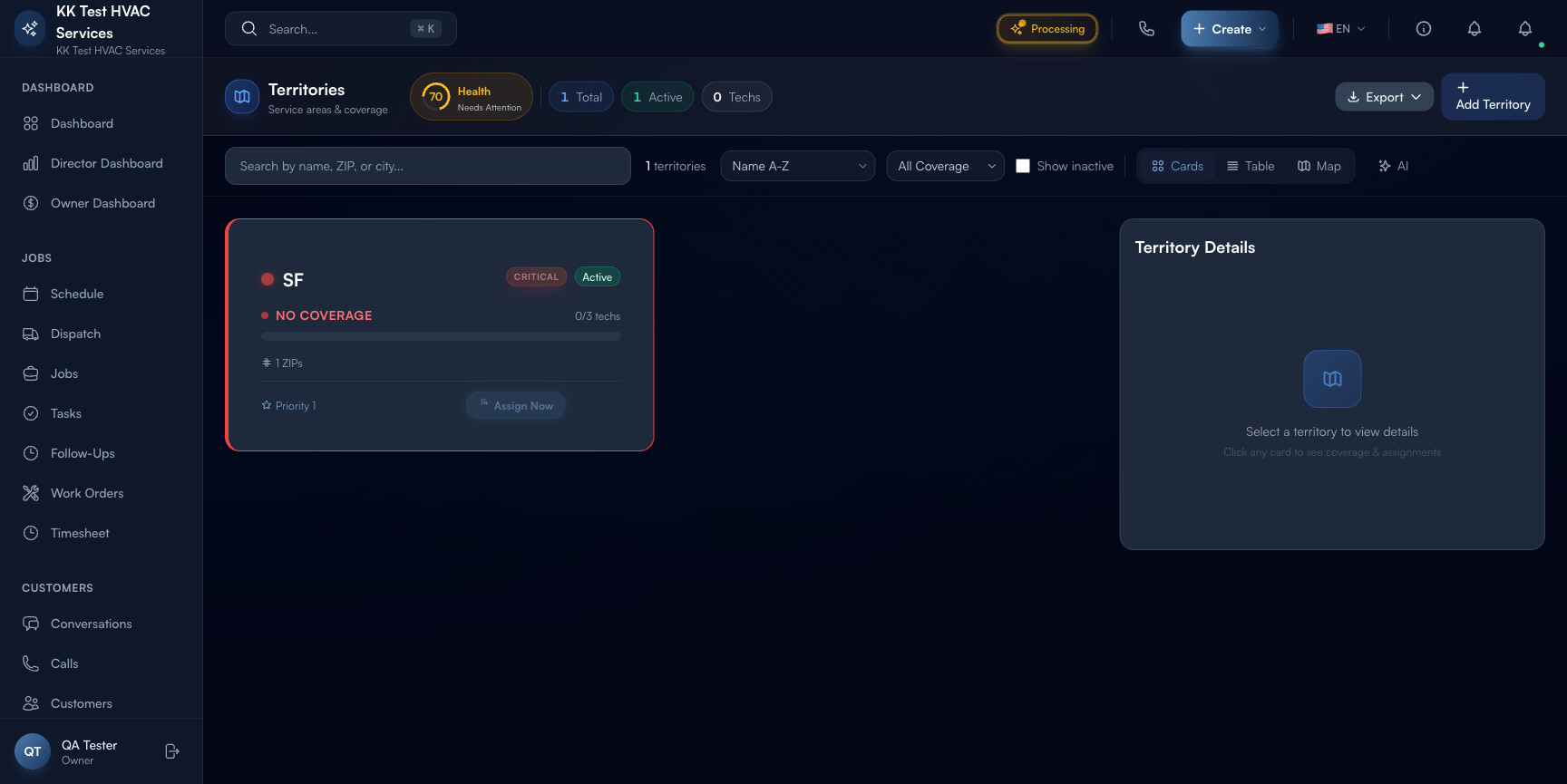
Look at the left sidebar of your Exoserva dashboard – this is the vertical menu that stays on the left side of your screen no matter what page you are on. Find the section labeled Operations (it is usually in the middle of the sidebar), and click “Territories” underneath it. If your sidebar is collapsed (showing only icons), look for the map pin icon. The Territories page will open and you will see a header row at the very top of the page.
Let me walk you through what you see on this page, because there is a lot here and I want you to understand every piece. In the header row, you will notice the page title with a small map icon next to it, and right beside that is something called a Coverage Health Score. This is a circular ring gauge that shows a percentage from 0 to 100% – think of it like a health checkup for your entire service coverage. A score of 100% means every territory has enough technicians assigned, while a low score means you have gaps that need attention. Next to the health score, you will see four small colored pills showing quick counts: Total territories (how many you have created), Active territories (how many are currently in use), Techs (total number of technicians assigned across all territories), and Need Coverage (territories with zero technicians – these are your urgent gaps). Each of these pills is actually clickable – tapping one filters your territory list to show only that subset.
Below the header, you will find a toolbar with several controls. There is a search bar for finding territories by name, a Sort dropdown (which lets you sort by Name A-Z, Priority, or Coverage Low First), a Coverage Filter dropdown (All, No Coverage, Limited, Covered, Full), a Show Inactive toggle, a View Mode toggle (Cards, Table, or Map), and an AI Insights toggle button. Do not worry about all of these right now – we will cover each one as we go through this guide. The main content area below the toolbar is where your territories will appear once you create them.
Tip: Here is a quick way to see what needs your attention right away: click the Need Coverage pill immediately after you arrive on this page. This filters the list to show only territories that have zero technicians assigned – these are the areas where customers will wait longest for service. Fix these first.
From Vlad: When I first built this page, I put the Coverage Health Score front and center for a reason. I wanted business owners to see, at a single glance, whether their coverage is solid or full of holes. Think of it like the fuel gauge in your car – you want it at 100%, and if it starts dropping, you know you need to take action before you run into trouble.
Step 2: Create Your First Territory
Now comes the fun part – actually creating your first territory. Look in the top-right corner of the page and click the “+ Create Territory” button. A creation form will appear on your screen with several fields to fill in. Let me explain each one so you know exactly what to enter.
The first field is Name – this is required, and it should be something descriptive that your team will immediately understand. Good examples are “North Austin,” “Downtown Core,” or “Westside Suburbs.” Avoid generic names like “Territory 1” because when you have ten territories, nobody will remember which is which. The next field is Description – this is optional, but I recommend using it for internal notes like “Covers the older neighborhoods near the university, lots of vintage HVAC systems” so your team knows what to expect in this area.
The ZIP Codes field is where you define exactly which areas this territory covers. Enter ZIP codes separated by commas, like “78701, 78702, 78703.” Think of ZIP codes as puzzle pieces – each one fits into exactly one territory. The Cities field is similar but uses city names, like “Austin, Round Rock.” You can use ZIP codes, cities, or both. The Priority field lets you set a star rating that determines dispatch priority – higher priority territories get technicians assigned first when there is competition for resources. Finally, Max Daily Jobs sets a capacity limit so the territory does not get overloaded – if you know an area can realistically handle 8 jobs a day, set it to 8.
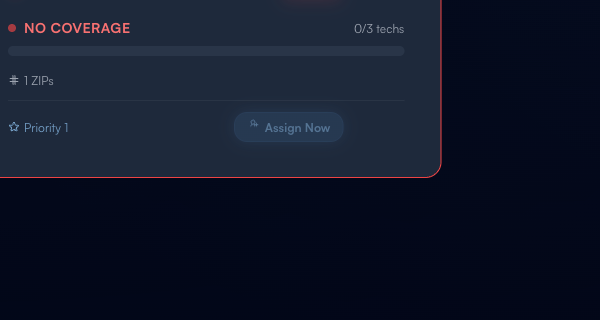
Once you have filled in the required fields (at minimum, the Name), click the “Create” button to save your territory. A small success notification will pop up confirming it was created, and your new territory will appear in the list below. You will notice it has a No Coverage status badge in red with a pulsing dot – this is completely normal! It just means you have not assigned any technicians to it yet, which is exactly what we will do in the next step.
Tip: Start with broad territories based on your natural service areas and refine later. It is much easier to split a large territory into two smaller ones than to merge overlapping ones. Think about how your business naturally divides – maybe it is “north side” and “south side,” or maybe it is by highway corridors. Use whatever makes sense for your team.
Warning: Each ZIP code should only appear in ONE active territory. If the same ZIP code is in two different territories, the AI dispatch system will get confused about which territory a job belongs to, and you will end up with inconsistent routing. Before creating a new territory, check that your ZIP codes do not overlap with existing ones.
From Vlad: I strongly recommend organizing territories by ZIP code clusters rather than just city names. Here is why: cities have fuzzy, overlapping boundaries that change over time. But ZIP codes are precise – every address has exactly one ZIP code. When a customer calls and gives their address, our system can instantly match their ZIP code to the right territory and find the right technician. I have seen companies that organize by city names spend 5 extra minutes per call figuring out whose territory a job falls into. With ZIP codes, it is instant.
Step 3: Assign Technicians to Territories
A territory without technicians is like a fire station without firefighters – it exists on paper but cannot actually help anyone. So the next step is to assign your team members to the territories they will cover. Find the territory card you just created (it should have a pulsing red dot and a big “Assign Now” button because it has no coverage yet). Click either the “Assign Now” button or the regular “Assign” quick action that appears when you hover over the card.
The Assign Technician Modal will pop up – this is a window that shows all your available technicians. At the top, there is a search bar where you can type a technician name or specialization to filter the list. Below that, you will see each technician listed with their avatar (profile picture or initials), name, email, and specializations shown as small colored tags (like “Plumbing” in blue, “HVAC” in green, “Electrical” in yellow). These tags help you match the right skills to the right area – for example, if a territory has a lot of older buildings with outdated wiring, you want someone with an “Electrical” specialization assigned there.
Click on a technician to select them. You will then see two important options: a Priority slider (from 1 to 5, where 1 is the highest priority) and a Primary toggle switch. Let me explain what these mean because they directly affect how the AI dispatch system works. The Primary toggle marks this technician as the go-to person for this territory – they get first dibs on every job in this area. The Priority number determines the order in which backup technicians are called when the primary tech is busy. So if you have three techs in a territory – one primary and two backups at priority 2 and 3 – the system tries the primary first, then backup #2, then backup #3.
Click “Assign” to confirm. Watch the territory card update in real time: the coverage bar will fill up to show the new technician count (like “1/3”), and the status badge will change color based on how many techs are now assigned. Limited (amber) means you have 1 tech, Covered (blue) means 2 techs, and Full Coverage (green, the goal!) means 3 or more technicians. Repeat this process to add more technicians to the same territory until you reach Full Coverage.
Warning: When you mark someone as the Primary technician for a territory, make sure that person actually lives near or regularly operates in that area. The whole point of territories is to minimize driving. If your primary tech for “North Austin” lives in south Austin, they will spend half their day in traffic instead of serving customers.
From Vlad: Here is why the primary/backup designation matters so much, and why I spent weeks getting it right: when AI dispatch assigns a job, it checks the primary tech first. If they are busy, it cascades to backup techs by priority number. If you set this up correctly during initial setup – and I mean really think about who should be primary in each area based on where they live and what they specialize in – then AI dispatch will route 90% of jobs without anyone in your office lifting a finger. I have seen dispatch managers go from spending 3 hours a day assigning jobs to spending 15 minutes reviewing what the AI already assigned. That is the kind of time savings I built this for.
Step 4: Monitor Coverage Health
Now that you have created territories and assigned technicians, let me show you how to monitor whether everything is working well. Think of this step like checking the dashboard gauges in your car – you want to glance at it regularly to make sure nothing needs attention.
The Coverage Health Score ring in the page header is your single most important metric. This is the big circular gauge that shows a percentage from 0 to 100%. A score of 100% means every active territory has at least 3 technicians assigned, which we call “Full Coverage.” The score goes down when territories have fewer technicians or, worst case, no technicians at all. Your goal should be to keep this score above 80% at all times. If it drops below that, it means you have areas where customers might wait too long for service because there are not enough technicians available.
Each individual territory card also displays its own coverage status with a color-coded indicator and label. Here is what each status means, from worst to best: No Coverage (red with a pulsing dot and an “Assign Now” button) means zero technicians are assigned – this territory cannot serve customers at all. Limited (amber) means only 1 technician is assigned – this is fragile because if that person calls in sick, you have a complete coverage gap. Covered (blue) means 2 technicians are assigned – better, but still tight. Full Coverage (green) means 3 or more technicians – this is the sweet spot where you always have backup available. Inactive (grey) means the territory is turned off and not being used for dispatch.
You can also click on any territory card to open the Detail Panel on the right side of the screen. This panel shows the full list of assigned technicians with their specializations and availability, the service area details (cities and ZIP codes), and capacity settings. I recommend spending 5 minutes each Monday morning reviewing this page to make sure your coverage is solid for the week ahead.
Tip: Aim for at least “Covered” status (2 technicians) on every active territory, and push for “Full Coverage” (3+) on your busiest territories. Single-tech territories are fragile – if that one person calls in sick, takes vacation, or has a truck breakdown, you have a coverage gap with zero backup. Having at least two people in every area means you can always serve your customers, even on bad days.
From Vlad: Here is something I learned from running our own service operations: the territories that cause the most customer complaints are always the “Limited” (single-tech) ones. It is not the “No Coverage” territories – because those usually get fixed quickly since the red pulsing dot is so obvious. It is the amber “Limited” ones that fly under the radar because technically someone is assigned. But one sick day, one flat tire, one family emergency, and suddenly that entire area has no coverage. Make it a weekly habit to turn every amber territory into a blue or green one.
Step 5: Filter and Search Territories
As your business grows, you might have 10, 20, or even 50 territories. Finding the one you need and managing them all can feel overwhelming without good search and filter tools. That is why we built a full toolbar of controls right above your territory list. Let me walk you through each one so you know exactly how to find what you need quickly.
The Coverage Filter dropdown is probably the most useful tool for daily management. Click it and you will see options for All (shows everything), No Coverage (shows only territories with zero techs – your urgent gaps), Limited (territories with only 1 tech), Covered (2 techs), and Full (3+ techs – your healthy territories). Use this filter to focus on specific groups. For example, select “No Coverage” right after you log in on Monday morning to see if any areas need immediate attention.
The Sort dropdown changes the order of your territory list. Name A-Z sorts alphabetically (great for finding a specific territory by name). Priority puts your highest-priority territories first (useful for making sure your VIP areas are fully covered). Coverage Low First is my personal favorite – it puts the most urgent gaps at the top of your list, so you are always working on the biggest problems first.
The search bar lets you type to find territories instantly. It works with territory names, city names, and even ZIP codes. So if a customer calls from ZIP code 78702 and you want to see which territory covers that area, just type “78702” in the search bar and it will show up immediately. The Show Inactive toggle reveals territories that have been turned off – useful when you want to reactivate an old territory for a new season. And finally, the View Mode toggle lets you switch between three views: Cards (visual cards with coverage indicators – best for daily use), Table (spreadsheet-style with sortable columns for Name, ZIP Codes, Cities, Status, Priority, and Actions – best for large lists), and Map (a placeholder for the upcoming interactive map feature that will show territories on an actual map).
Tip: Use “Coverage Low First” sort during your weekly territory review. This puts the most urgent coverage gaps at the top of your list so you address them before they become customer service problems. Combine it with the “No Coverage” filter for maximum efficiency – you will see your most critical gaps first and can work through them one by one.
Step 6: Use AI Insights for Optimization
Here is where things get really powerful. Exoserva does not just let you manage territories manually – it also uses artificial intelligence to analyze your data and suggest improvements. Think of it like having a really smart assistant who looks at all your job history, technician schedules, and customer locations, and then tells you exactly what to change to make things run better.
To access this feature, click the AI Insights toggle button in the toolbar (it has a small sparkle icon). This opens a panel on the right side of the page with three tabs. The first tab, Insights, shows the AI current analysis of your coverage. It will highlight things like “Territory North Austin is getting 40% more jobs than Territory South Austin but has fewer technicians” or “Technician John has 25% less workload than average – consider reassigning him to a busier territory.” These are specific, actionable observations based on your real data.
The second tab, Predictions, is where the AI looks into the future. Based on your historical job data and seasonal patterns, it forecasts which territories will be busiest in the coming weeks. This is incredibly useful for seasonal businesses – if you are an HVAC company, the AI might tell you in late May that your “Suburban East” territory is about to see a 50% increase in service calls as summer starts, giving you time to assign extra technicians before the rush hits.
The third tab, Actions, gives you one-click suggestions. Instead of just telling you about a problem, the AI proposes a specific solution like “Move Tech A from Territory X to Territory Y” and explains why (for example, “Territory Y has 3x more jobs per tech than Territory X, and Tech A lives closest to Territory Y”). You can review each suggestion and click to apply it directly – no need to manually reassign anyone. The AI handles it for you.
Tip: You do not need to follow every AI suggestion – they are recommendations, not commands. But I recommend reviewing them at least once a week. Even if you only act on one suggestion per week, that small optimization compounds over months into significantly better coverage and happier customers.
From Vlad: The AI insights get dramatically smarter over time as the system learns your job patterns. For the first two weeks, the suggestions might feel basic or obvious. But after a month of real data, the demand predictions become remarkably accurate, especially for seasonal businesses. I have personally seen HVAC companies use the predictions to pre-position technicians in specific territories before summer heat waves hit, cutting their emergency response time in half. The key is patience – give the AI data to learn from, and it will reward you with insights no human dispatcher could calculate by hand.
Step 7: Export and Manage Territory Data
Sometimes you need your territory data outside of Exoserva – maybe for a meeting with your partners, a report for your accountant, or just a backup for your own records. Exoserva makes this easy with built-in export options.
Click the Export dropdown button in the toolbar (it has a small download arrow icon). You will see three format options: CSV (which stands for “Comma-Separated Values” – this opens in any spreadsheet program like Google Sheets or Excel), Excel (a formatted spreadsheet with nice column headers, ready for printing or sharing), and JSON (a technical format used for integrations with other software or for complete data backups). For most people, CSV or Excel is the right choice. One important thing to know: the export only includes the territories that are currently visible based on your filters and search. So if you want to export only your “No Coverage” territories, filter to that group first, then export.
For managing individual territories, each territory card has quick action buttons. Assign lets you add or change technician assignments (we covered this in Step 3). Toggle activates or deactivates a territory – deactivating is like putting it to sleep. It keeps all the historical data and technician assignments, but the territory is removed from active dispatch. This is perfect for seasonal areas that you only serve part of the year. Delete permanently removes the territory and all its assignment history – this cannot be undone, so use it carefully.
My strong recommendation: if you are thinking about deleting a territory, use Toggle (deactivate) instead. You can always reactivate a deactivated territory with a single click, and all your technician assignments will still be there. Deleting means starting from scratch if you ever need that territory again.
Tip: Export your territory data once a month as a backup. Even though Exoserva handles all the data storage for you, having a local copy gives you peace of mind. I also recommend exporting before and after major territory restructuring so you can compare the changes.
Warning: Deleting a territory is permanent and cannot be undone. All assignment history, coverage data, and AI learning for that territory will be lost forever. If you just want to temporarily stop dispatching to an area (for example, during the off-season), use the Toggle action to deactivate it instead. Deactivated territories retain everything and can be reactivated with one click.
Common Mistakes to Avoid
- Creating overlapping territories with the same ZIP codes – this is the number one mistake new users make, and it causes serious dispatch confusion. When the same ZIP code appears in two territories, the AI cannot determine which territory a job belongs to, so it picks one randomly. Each ZIP code should appear in exactly one active territory. Before creating a new territory, double-check that your ZIP codes do not overlap with existing ones.
- Leaving territories at “No Coverage” status for more than a few days – these areas cannot serve customers because no technician is available for dispatch. Every day a territory has no coverage, you are potentially losing jobs and frustrating customers in that area. Make it a habit to check the “Need Coverage” pill every Monday morning and fix gaps immediately.
- Assigning every technician as Primary in every territory – this defeats the entire purpose of the priority system. If everyone is primary everywhere, the system has no way to know who should get first dibs on a job. Each territory should have exactly one primary tech (the person who knows that area best and lives closest) and one or two backups ranked by priority number.
- Ignoring the AI Insights panel after initial setup – many users set up their territories, assign techs, and never look at the AI recommendations again. But the optimization suggestions improve dramatically as more job data accumulates. The Predictions tab is especially valuable – review it monthly to stay ahead of demand changes before they catch you off guard.
- Creating too many tiny territories – some users try to create a territory for every ZIP code or every neighborhood. This creates a management nightmare and makes it nearly impossible to staff every territory properly. Start with 4-6 broad territories and only split them when a territory consistently gets more jobs than its team can handle.
- Forgetting to update territory assignments when technicians leave or join the team – if a tech quits and they were the primary for two territories, those areas instantly lose their best coverage. When any team change happens, review your territory assignments within 24 hours to reassign primary and backup roles.
What’s Next?
Now that you’ve completed this guide, check out:
Need help? Post in the Tech Support category or contact support@exoserva.com.