Properties are the physical addresses where work happens — separate from the customer who pays. New users often confuse these objects, but the distinction matters: a single landlord (one Customer) can own 30 buildings (30 Properties), and a single building (one Property) can be visited dozens of times across years of service. The Properties page is where you manage that location-history continuity, regardless of who’s paying or who’s calling.
Estimated time: 8 minutes
Before You Begin
- Owner, Manager, Dispatcher, or CSR role with Manage Properties permission (Roles, Permissions, and Security)
- At least one Customer to attach properties to (Managing Customers)
What is a “Property” — and how is it different from a Customer?
The most common new-user confusion:
| Object | What it represents | Lifetime |
|---|---|---|
| Customer (guide) | Who pays you | Tied to a person/business |
| Property | Where the work happens | Tied to a physical address |
| Asset (guide) | Equipment installed on a property | Tied to a serial number |
Real-world example: a landlord owns 4 rental units. That’s 1 customer + 4 properties. If she sells one of the units, the property record stays in your CRM (now linked to the new owner) — your service history at 2200 Oak Ave doesn’t disappear because the deed transferred.
Step 1: Open the Properties page
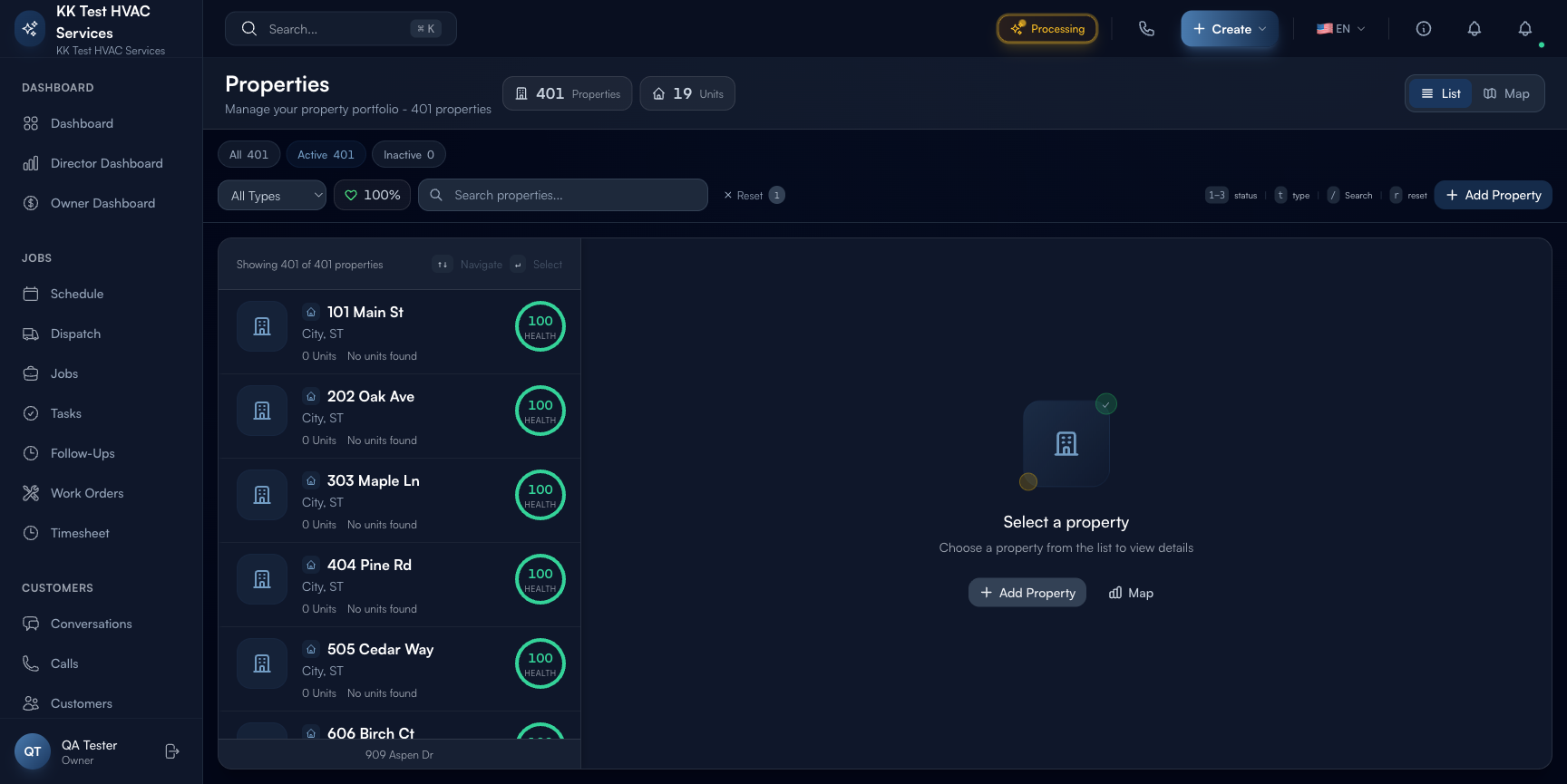
Click Properties in the left sidebar. Direct URL: /properties. The page lists every property you’ve ever serviced.
Step 2: Read the page header
The strip at the top is your portfolio snapshot:

- Properties count — total locations
- Units count — for multi-unit buildings (apartments, condos), each unit can be its own row under one property
- List / Map view toggle — switch between table and map view
- Status filter — Active / Inactive / All
- Type filter — All Types / Residential / Commercial / Mixed Use / Industrial
- Portfolio Health — Excellent / Good / Fair / Poor (based on equipment maintenance state)
- Action toolbar — Reset filters, + Add Property
Tip: Switch to Map view at least once a week. Geographic clusters of properties tell you where to focus marketing (high-density area = referral hotspot) and where to maybe drop service (long drive + low revenue = unprofitable territory).
Step 3: Read the type filters
The type chips break the portfolio by building category:

- Residential — single-family homes, condos, townhouses
- Commercial — offices, retail, restaurants
- Mixed Use — buildings with both residential and commercial space
- Industrial — warehouses, factories, server farms
Type drives default behavior: residential gets standard tax, commercial gets a different rate; commercial gets bigger preventive-maintenance schedules.
Tip: If you do both residential and commercial, the Type filter is your daily friend. Most contractors run two parallel businesses with different ticket sizes, different payment terms, and different sales cycles. Filter to see one or the other clearly.
Step 4: Read the property card
Each property card shows:

- Address — primary identifier
- Type — residential / commercial / etc.
- Status — active / inactive
- Owner — clickable link to the Customer who owns the property
- Recent activity — last service date, jobs count, total revenue from this address
Click any card → opens the Property detail with tabs for Overview / Jobs / Assets / Notes / Activity.
Step 5: Add a new property
Click + Add Property. The form asks:
- Owner (Customer) — search-pick from existing customers
- Address — auto-completes via Google Maps
- Type — Residential / Commercial / Mixed Use / Industrial
- Square footage — for capacity planning (commercial)
- Year built — for equipment-age estimation (residential)
- Access notes — gate codes, alarm codes, key locations, dog warnings, parking instructions
- Tags — VIP, Difficult Access, Restricted Hours, etc.
Click Save. Property is now linked to the customer; selectable on Estimates / Jobs.
Tip: Always fill Access notes at the property level, not the job level. Job notes get archived after 90 days; property notes persist forever and surface on every future job. “Gate code 4421, dog Bella in backyard, neighbor has spare key” saves your next tech a 30-min headache 5 years from now.
Step 6: Multi-unit properties (apartments, condos, businesses)
For multi-tenant buildings, set Property type = Mixed Use and add Units:
- Property = the building (e.g. 2200 Oak Ave)
- Units = individual rentable spaces (Unit 101, Unit 102, etc.)
Each unit can have:
- Its own Tenant (different customer than the building owner)
- Its own Asset list (HVAC unit specific to that apartment)
- Its own Service history isolated from other units
This pattern is essential for property managers and landlords — one building, many service histories, one owner relationship.
Step 7: Properties on the map
Click Map view. Properties show as pins color-coded by:
- Activity — green = serviced this year, yellow = 1-2 years, red = 3+ years
- Type — residential / commercial color icons
- Health — pin badge color reflects PM/equipment state
Tip: Drag-rectangle on the map to select all properties in a geographic area, then bulk-action (e.g. send maintenance reminder). Useful for storm-damaged areas: identify all affected properties, blast a “we’re available for repairs” message.
Step 8: Property detail and history
Click a property → opens detail with tabs:
- Overview — address, owner, access notes, photos
- Jobs — every service visit ever, by date
- Assets — every piece of equipment installed (HVAC units, water heaters, panels)
- Notes — internal context for the team
- Activity — timeline of every interaction (calls, emails, service visits)
Right side: Quick Actions — Create Job at this property / Add Asset / View on Map.
Tip: Before any job at a known property, click open the property and skim Activity. “Last 3 visits all about the same compressor” tells you to bring a replacement compressor on the next visit instead of running back to the supplier mid-job.
Step 9: Common new-user questions
Q: A property changed hands (new owner) — how do I update?
A: Open the property → Edit Owner → search the new customer (add as new customer if they’re not in the system yet) → save. Service history stays attached to the property; the new owner inherits visibility into past work (which they may want).
Q: Same address, different units — do I create one property or multiple?
A: One property, multiple units. The building (one address) is one Property record; each rentable unit inside is a Unit attached to that Property. Service history rolls up to the building for portfolio metrics.
Q: A customer moved to a new home — keep the old property?
A: Yes — keep it. The new owner of that address might call you next year. Update the customer’s primary address to the new home, and add the new home as a new Property linked to that same customer.
Q: Can two customers share a property?
A: Set the building as the Property; each tenant (different customer) is linked via the Unit layer. For shared-ownership scenarios (LLC + manager), use the Owner field for the LLC and the Additional Contacts field for the manager.
Q: Properties without a customer attached — can I have orphan properties?
A: Yes — properties can exist temporarily without a customer (e.g., during a sale transition or a site survey before signing). They show as “Unowned” with a yellow flag until you link them. Don’t let orphans accumulate; review monthly.
Step 10: Common new-user mistakes
- Creating a new property every visit — if you re-create 2200 Oak Ave each time you go, the service history splinters and “is this the third time the AC failed here?” becomes unanswerable. Always search first.
- Putting access codes in job notes only — they get lost when the job archives. Put them on the Property record so every future tech sees them.
- Ignoring Property type — residential vs. commercial drives default tax, default schedule, default contact preferences. Wrong type = wrong defaults compounding for years.
- Treating multi-unit buildings as separate properties — splits the maintenance history; loses the “this building has 4 leaks this year” pattern that should trigger a portfolio review with the owner.
- Skipping geocode verification on import — if the address auto-complete didn’t lock onto a valid Google place, the Property won’t appear on Map view, and route optimization can’t use it.
Real-World Example
Your dispatcher gets a call: “It’s the manager of 2200 Oak Ave — the AC in unit 4B is out again.” She types “2200 Oak” into the search bar; the property loads with all 12 units listed. She clicks Unit 4B → tabs to Jobs — sees the previous tech replaced the compressor 18 months ago, warranty 24-month. She tabs to Assets — same compressor model, serial number on file. Schedules the job, attaches the warranty terms to the notes, dispatches a tech with the model number pre-loaded. The tech arrives knowing exactly what to expect, has the warranty paperwork already filled, and the owner gets a no-charge service call. Total time from phone-ring to dispatched: 90 seconds. Five-star review by Friday.
What’s Next?
- Managing Customers — the people who own these properties
- Equipment and Asset Tracking — the hardware installed at each property
- Preventive Maintenance Schedules — recurring visits per property
- Managing Service Territories — group properties geographically
Need help? Post in the Tech Support category or contact support@exoserva.com.