Your customer database is the highest-leverage asset in a field-service business. Every job, every invoice, every review, every referral connects through it. New users often treat the Customers page as just a contacts list — and miss the lifecycle data underneath it: revenue per customer, jobs per customer, time since last visit. The right habits on this one page raise repeat-business rate from ~30% (industry baseline) to 60%+.
Estimated time: 9 minutes
Before You Begin
- Owner, Manager, Dispatcher, or CSR role with Manage Customers permission (Roles, Permissions, and Security)
- (Optional) A spreadsheet of existing customers from your prior system, ready to import
What is a “Customer” — and how is it different from a Property or Account?
Easy confusion for new users:
| Object | What it represents | Example |
|---|---|---|
| Customer | A person or business that pays you | “Acme HVAC Co” or “Jane Smith” |
| Property (guide) | A physical location work happens at | “123 Main St, Unit 4B” |
| Account | A bigger entity grouping multiple customers (enterprise plans) | “ACME Corporation” with 12 sub-locations |
A Customer can have many Properties (a landlord with 4 buildings). One Property belongs to one Customer. Accounts group Customers under a single billing umbrella for chains and franchises.
This page is for Customers. Properties and Accounts have their own pages.
Step 1: Open the Customers page
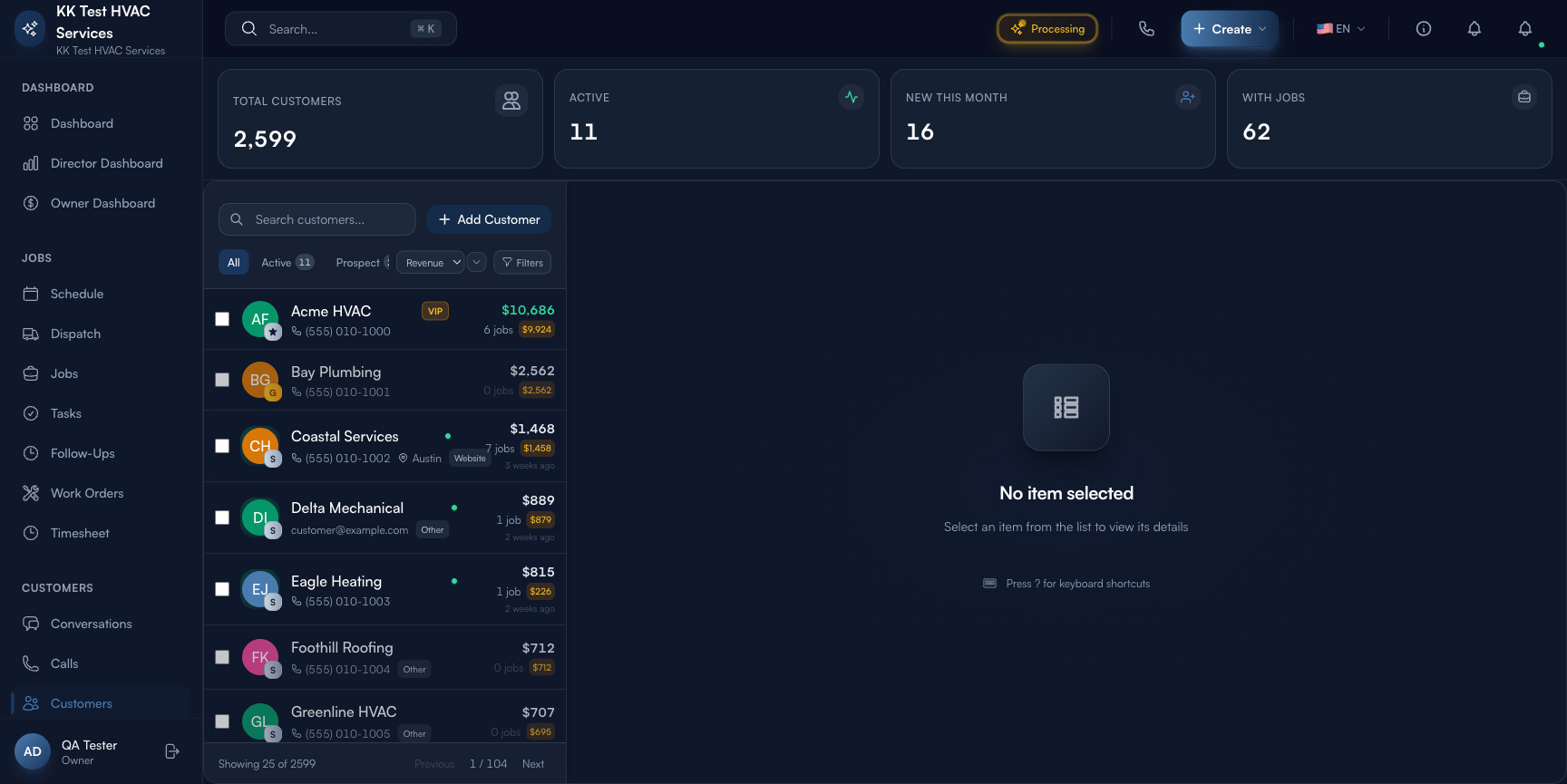
Click Customers in the left sidebar. Direct URL: /customers. You’ll see the full list of every person/business in your CRM.
Step 2: Read the page header
The strip at the top is your CRM health snapshot:

- Total Customers — every record in the CRM
- Active — customers with a job or invoice in the last 12 months
- New This Month — fresh signups (lead-gen indicator)
- With Jobs — customers who’ve had at least one completed job (vs. prospects who never converted)
- Action toolbar — Email, Export, + Add Customer
Tip: Compare Total to Active. If only 30% of your CRM is active, the rest is decaying — but each name has a phone number and an address. A single “we miss you, here’s a $99 tune-up” email blast to dormant customers reactivates 5-10% of them. Worth ~$8-15K/month in recovered work for a typical contractor.
Step 3: Read the status tabs
The tab bar above the list segments customers by lifecycle:
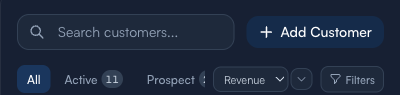
- All — everyone
- Active — at least one paid invoice in 12 months
- Prospect — in the system, no paid work yet (lead, quote-only)
- Follow-up — flagged for outreach (manual or AI-suggested)
- Inactive — no activity in 12+ months
Tip: Prospect is your conversion-rate gauge. Healthy lead-to-customer conversion in field service is 40-55% — if your Prospect tab is huge and Active is tiny, your sales/follow-up process has gaps. Map the funnel: leads → quoted → won.
Step 4: Read the customer card
Each customer is a card showing:

- Avatar / initials + name
- Phone / email (clickable — calls or emails directly)
- Tags — VIP, Repeat, Referral source, custom tags
- Lifetime Revenue — sum of all paid invoices ever
- Jobs count — total jobs done
- Recent revenue — last 12 months
Click any card → opens the full customer detail with: tabs for Overview / Jobs / Invoices / Estimates / Properties / Activity / Notes.
Step 5: Add a new customer
Click + Add Customer. The form asks:
- Type — Residential (homeowner) or Commercial (business)
- Name — first/last for residential; business name for commercial
- Phone(s) — primary plus optional secondary (mobile + work)
- Email — primary
- Primary address — auto-fills from address autocomplete
- Source — how they found you: Google / Referral / Repeat / Voice AI / Website / Social
- Tags — VIP, Net 30, Senior Discount, etc.
- Notes — anything the team should know
Click Save. The customer appears in the list immediately and is selectable on Estimates / Jobs / Invoices.
Tip: Always fill Source. Knowing where customers come from drives marketing-spend decisions. “Google = 40% of new customers + $X/mo cost” tells you whether AdWords is paying off; “Referral = 25% of new + $0 cost” tells you to incentivize more referrals.
Step 6: Bulk-import from spreadsheet
If you’re migrating from another platform, click ⋯ → Import Customers. Upload CSV with columns: first_name, last_name, business_name, phone, email, address, city, state, zip, source, tags. Sample CSV downloadable from the dialog.
Tips for clean imports:
- Strip leading/trailing whitespace from phones (cleaner deduplication)
- Use US phone format: +1 (XXX) XXX-XXXX or 10 digits
- Tags should match your existing tag list (case-sensitive)
- Run on a backup workspace first if you have 1000+ rows
Warning: Imports look for duplicates by phone first, then email, then name+zip. If two of your records have the same phone, only one gets created — review the import results carefully and use the Merge Duplicates tool to clean up.
Step 7: Use search and filters
The search bar at the top finds by name, phone, email, or address. Filters narrow further:
- Source — Google / Referral / Repeat / Voice AI / Website
- Tags — VIP / Net 30 / Senior / etc.
- Created — date range
- Has open balance — customers who owe you money
- Last visit — date range (find dormant customers)
Tip: Build a Friday afternoon ritual: filter to Last visit > 6 months ago + Active tag → bulk select → email a “we miss you” coupon. Recovers 5-10% of dormant customers per blast.
Step 8: Use the customer detail page
Click any customer to see the full profile. Tabs:
- Overview — contact info, lifetime stats, recent activity timeline
- Jobs — every job they’ve had (sortable, with status pills)
- Invoices — full billing history, balance owed, payment patterns
- Estimates — quotes sent, won, lost
- Properties — physical locations they own/rent
- Activity — every email opened, SMS received, call placed/answered
- Notes — internal team notes
The right side has Quick Actions: Create Job / Create Estimate / Send Email / Call.
Tip: Before any sales call to a known customer, click their card and skim Activity. “They opened the last estimate twice but didn’t approve” changes how you open the call — “Hey, just calling to clarify anything on the estimate I sent last week” lands better than “Have you decided?”.
Step 9: Common new-user questions
Q: Do I add the customer or the property first?
A: Customer first. The customer is the who; properties are the where. Add the customer (with their primary address as the implicit first property), then add additional properties to that customer if they own multiple buildings.
Q: Customer changed their phone number — what happens to old job records?
A: Update the customer’s phone on the Customer detail page. Old jobs remain linked (they reference the customer record, not the phone string), so no data loss.
Q: Two customer records for the same person — how do I merge?
A: Open one record → ⋯ → Merge with another → search the duplicate → review which data to keep → confirm. Jobs, invoices, estimates from both records consolidate under the surviving customer ID.
Q: How do I mark a customer as VIP / treat differently?
A: Add a Tag on the customer (e.g. “VIP”, “Premium SLA”, “Net 30”). Tags appear on every job/invoice/estimate referencing that customer, so techs and dispatchers see the flag at a glance.
Q: Can a customer have a primary contact + multiple billing emails?
A: Yes — the Email field is primary; under Additional Contacts you add secondary emails (e.g. AP@business.com for billing, on top of the primary contact). Each can have its own role and notification preferences.
Step 10: Common new-user mistakes
- Skipping the Source field — without source data you’re flying blind on marketing ROI. Even rough categories (“Google”, “Referral”, “Repeat”) are vastly better than blank.
- Lots of “John Smith” with no business name — for residential always include both names (first + last) to avoid 10 John Smiths in the search dropdown.
- Not tagging high-value customers — VIP / Repeat / Net-30 tags drive automation rules (priority dispatch, payment terms, special pricing). Tag once; benefit forever.
- Letting Inactive accumulate without re-engagement campaigns — every quarter run a re-engagement blast. Free reactivation revenue.
- Ignoring duplicates — duplicate customer records split history, mess up “lifetime revenue” math, and confuse techs about whether the customer is a VIP or not. Run Merge Duplicates monthly.
Real-World Example
End of Q1, you open Customers and skim the metrics: 2,598 total, 1,140 active. Active rate is 44% — soft. You filter Inactive + Last visit 12-24 months ago → 380 names. You compose a one-line email: “It’s been a while — book your spring tune-up by April 30 for $99 (normally $149)”. Bulk-send via the page action. Over the next 3 weeks, 31 of those 380 book appointments. At average ticket $185, that’s $5,735 in recovered revenue from 5 minutes of email composition + a couple weeks of incoming bookings — and 31 customers re-promoted to Active who’ll likely come back again next year.
What’s Next?
- Managing Properties — physical-location records linked to customers
- Conversations and Customer Chat — SMS / email / call history
- Customer Communication Automation for Home Services — playbook for retention
- Building a 5-Star Reputation: Online Reviews — turn happy customers into reviews
Need help? Post in the Tech Support category or contact support@exoserva.com.