The Schedule Board is where dispatching becomes drag-and-drop. Most contractors run the day from this single page: who’s working, where they are, what’s overdue, what’s still unassigned. New users often work jobs from the Jobs page list and miss the spatial intuition the board gives — once you switch, you don’t go back.
Estimated time: 8 minutes
Before You Begin
- Owner, Manager, or Dispatcher role with Manage Schedule permission (Roles, Permissions, and Security)
- At least one technician on your team
- Some Jobs created (the board displays them — it doesn’t create them)
What is the “Schedule Board” — and how is it different from the Jobs page?
For new users:
- Jobs page (guide) = a list — best for filtering, bulk actions, search
- Schedule Board = a grid — techs as rows, time as columns, jobs as draggable cards
The board is the visual operating surface for dispatch. The list is the data surface. Most teams have one screen on each.
Step 1: Open the Schedule Board
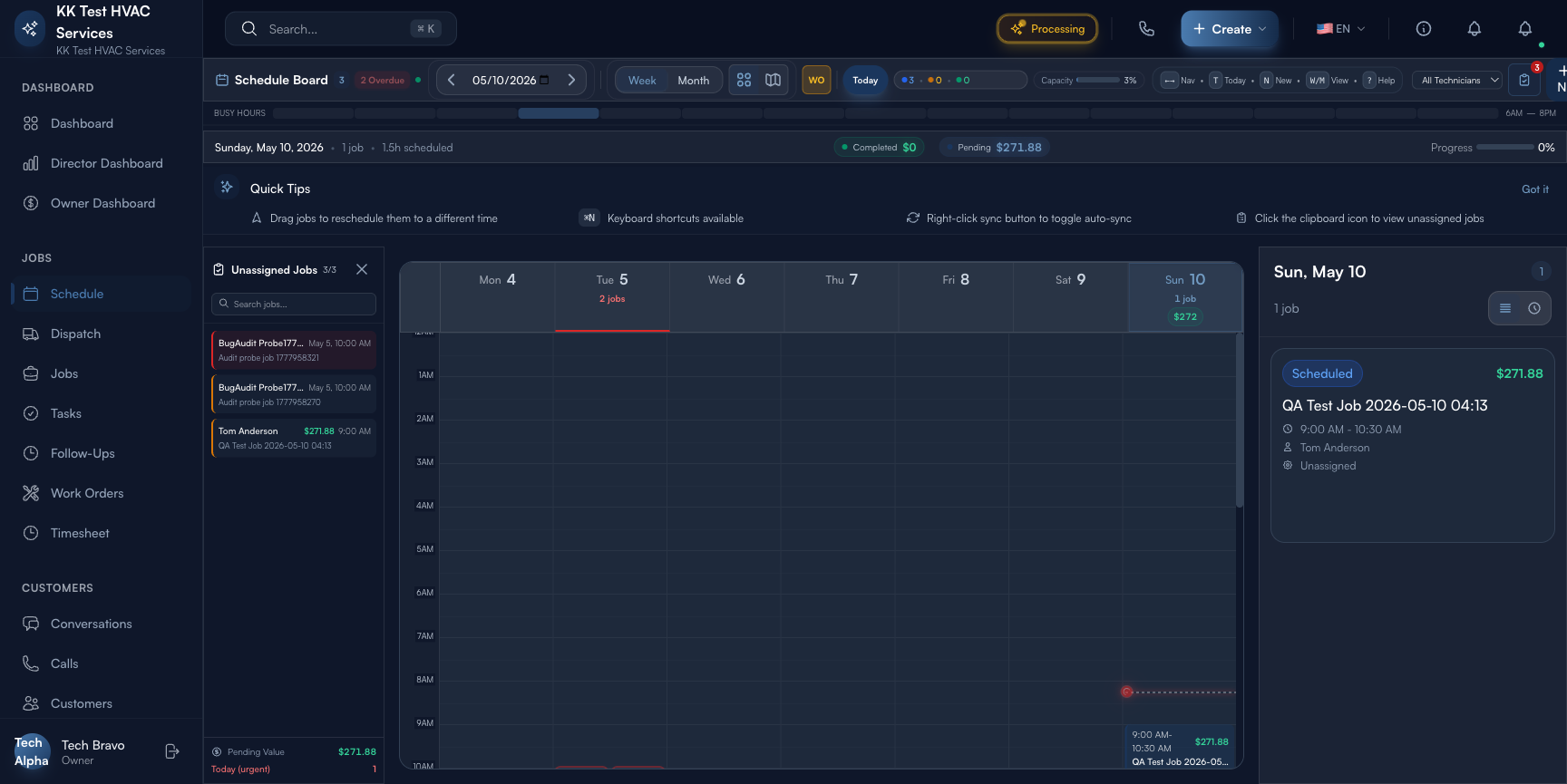
Click Schedule in the left sidebar. Direct URL: /schedule. The board opens in Week view by default with techs down the side and days across the top.
Step 2: Read the toolbar
The strip at the top is your day-at-a-glance:

- Overdue count — jobs in the past with no completion (red badge)
- W / M view toggle — Week or Month
- Today button — jump back to today
- Job count and revenue — visible jobs in current view
- Capacity % — fraction of work-hours filled across all techs (the most important board metric)
- Keyboard hints — Nav (arrows), T (today), N (new), W/M (view toggle), ? (help)
Tip: Watch Capacity %. Healthy operations run 75-90% — under-booked means you have idle techs leaking margin; over-booked means you’re going to deliver late and 1-star reviews follow. Aim for the sweet spot and adjust dispatch accordingly.
Step 3: Read the tech rows
Each tech is a row, and each scheduled job is a colored card on their row at the time it’s scheduled:

- Tech name and avatar at the row label
- Job cards — color-coded by status (Scheduled / In Progress / Completed)
- Card width = duration; longer card = longer job
- Empty space = gap; available capacity to dispatch into
- Top row “Unassigned” = jobs that need a tech (the dispatcher’s hot list)
Step 4: Drag-and-drop dispatch
The board’s superpower:
- Drag from Unassigned to a tech row = assigns the job
- Drag within a row = reschedule (same tech, different time)
- Drag from one tech row to another = reassign
- Resize from the right edge = change duration
Customer notification fires automatically on any of these — no separate “send update” step.
Warning: Long drags across many days can land in the wrong slot if your hand wobbles. Look at the timestamp in the drag preview before releasing — if it’s not what you expect, drop it on a different cell to undo, then try again.
Step 5: Filter to “Unassigned Only”
Top-right of the toolbar: Unassigned Only toggle. This shows only the jobs that need a tech assigned — usually the dispatcher’s morning view. Combined with the date picker (e.g. Today), this is the “what fires do I need to put out before 9 AM?” filter.
Tip: Build a daily ritual: 8 AM, open the board, click Unassigned Only + Today, drag-assign every card before 8:30. Whole-team capacity should be visible — assign each job to the closest tech with the right skill.
Step 6: Use the keyboard shortcuts
The board is heavily keyboard-driven. Press ? for the full list. The high-leverage ones:
- T — jump to Today
- N — create a new job (opens the job wizard, drops result on the board)
- W / M — toggle Week / Month view
- ← / → — navigate previous / next week
- F — focus on Unassigned (filter toggle)
- Esc — clear selection / close detail
Tip: Dispatchers handling 40+ jobs/day cut dispatch time 30-50% by learning these. The single biggest win: N to create a job from the board (skips the round-trip to the Jobs page).
Step 7: Click a card to see details
Click any job card → side panel slides in with: customer, address, line items, technician, scheduled time, notes, photos, history. From here you can:
- Edit — change scope, customer, schedule
- Reassign — change technician inline
- Mark In Progress / Completed
- Open in full Job detail — for editing line items, attaching photos, seeing the lifecycle
The side panel doesn’t disrupt the board view — keep dispatching while you peek at details.
Step 8: Switch to Month view
Click M in the toolbar. Month view condenses everything to a calendar grid — useful for:
- Visualizing week-over-week capacity trends (are you booking out further than usual?)
- Spotting slow weeks where you should run a marketing push
- Setting up recurring maintenance patterns visually
Tip: Month view is read-only for drag-and-drop (cells too small to drag accurately). Use it to spot patterns; switch back to Week to act.
Step 9: Common new-user questions
Q: A tech called in sick — fastest way to reassign their day?
A: Filter to that tech’s row → select all their jobs (Cmd-click each card) → Bulk Actions → Reassign To → pick another tech. All customers get notified automatically.
Q: How do I add a “lunch break” or non-job time block?
A: Right-click on the tech row at the time slot → Add Block → name it (Lunch / Travel / Training) → save. Blocks the slot from getting jobs dropped on it.
Q: Customer wants the same tech every visit. How do I see “who came last time”?
A: Click the customer’s name on a job card → opens customer profile → Visit History shows every prior tech who served them. Or: in the create-job wizard, the “Last assigned tech” shows under the customer block.
Q: Two techs scheduled at the same time — does Exoserva warn?
A: Yes — overlap shows visually (cards stack with a red “conflict” border) and the dispatcher gets a warning before drag-confirm. You can override (some shops do dual-coverage on emergency calls), but the warning makes accidents rare.
Q: Can a tech see only their own row, not the whole board?
A: Yes — by role. Technician role sees a “My Schedule” view (their row, their day) by default. Only Dispatcher / Manager / Owner see the full board. Configurable in Roles.
Step 10: Common new-user mistakes
- Dispatching without checking address proximity — assigning the south-side call to the tech driving back from the north-side call wastes 45 min of windshield time. Use the Routing view if you have it; otherwise, eyeball geography before dropping.
- Over-booking “buffer-free” days — every job goes 15-25% over estimated time on average. Schedule buffers between jobs (10-20 min between calls is healthy) or you’ll cascade-fail by 3 PM.
- Ignoring Unassigned past 9 AM — the customer expects you today; silence breeds 1-star reviews.
- Re-dispatching with no comms — if you reassign or reschedule, let the customer know. Exoserva auto-sends; just make sure auto-notifications are on (Settings → Notifications).
- Treating the board as a TV — it’s an active dispatch tool. Drag, drop, click — don’t just look at it.
Real-World Example
Monday, 7:55 AM. Your dispatcher opens the board: 12 unassigned jobs across 5 techs. She filters to Unassigned + Today — only 8 left after the auto-assignments fired overnight. She drags 3 to your senior tech (he can handle the commercial water-heater install), 2 to the apprentice (basic maintenance), 2 to the south-side rover, and the last (a recurring tune-up) to the closest tech geographically. By 8:10, every job has a tech. At 8:30, a customer calls — emergency drain backup. Press N, fill the wizard, drop the new card on the rover (he’s nearest). Auto-text fires. By 9:30, all trucks are rolling on a fully-dispatched day. The dispatcher spent 35 minutes total, not 90.
What’s Next?
- Creating and Managing Jobs — the source of board cards
- Dispatcher Daily Workflow — the routine that pairs with this page
- Route Optimization: Reduce Drive Time — geography-aware dispatch
- Managing Service Territories — how techs and zip codes match up
Need help? Post in the Tech Support category or contact support@exoserva.com.