Tracking Payments is the receiving end of your money flow — the page that says “we got paid, here’s by whom and how”. New users underuse it because most payments come in automatically (Stripe, ACH) and the page just looks like a log. But the patterns it reveals — which customers pay fast, which channel collects best, which days the bank account fills — drive every cash-flow decision in the business.
Estimated time: 7 minutes
Before You Begin
- Owner, Manager, or Bookkeeper role with Manage Payments permission (Roles, Permissions, and Security)
- (Optional) Stripe connected if you want auto-recorded card/ACH payments (Setting Up Stripe Payments)
- (Optional) QuickBooks connected for two-way payment sync (Connecting QuickBooks)
What is “Tracking Payments” — and how is it different from Invoices?
Easy confusion for new users:
- Invoices (guide) = what customers owe — outbound, you create them
- Payments = what customers paid — inbound, mostly auto-recorded when they pay
One invoice can have multiple payments (deposit + final). One payment can cover multiple invoices (consolidated check). The Payments page is the log of money received — it’s where you reconcile against your bank account.
Step 1: Open the Payments page
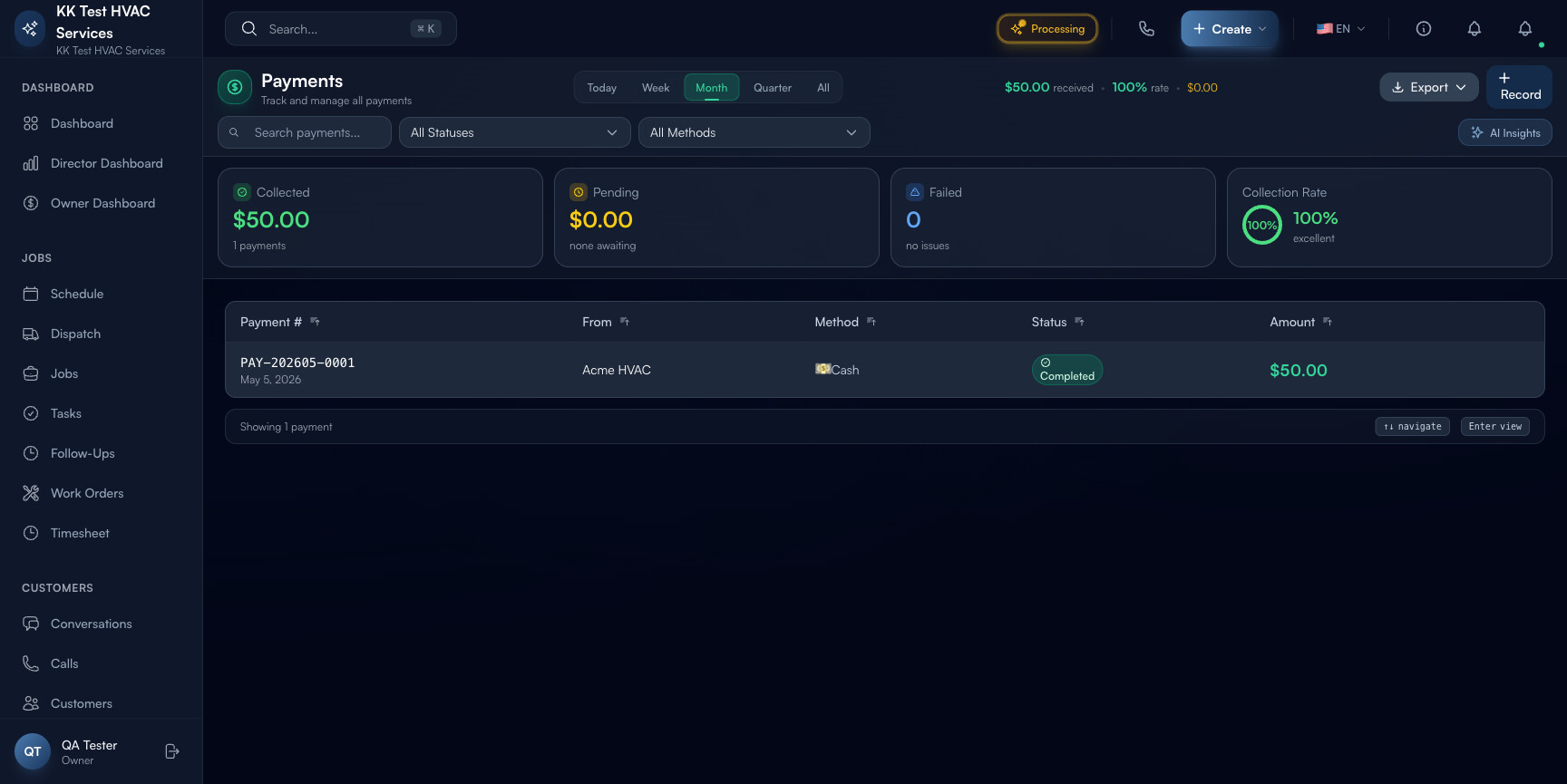
Click Payments in the left sidebar. Direct URL: /payments. The page lists every payment your business has received.
Step 2: Read the page header
The strip at the top is your collections snapshot:

- Total Received — sum of all payments in the visible date range (default: this month)
- Count — number of payment records
- Action toolbar — Date Range, Export, Record Payment
Tip: Compare Total Received to your invoiced revenue for the same period (Reports → Revenue). The gap is your AR aging — the lag between work done and money in the bank. Best-in-class field service businesses keep this under 25 days.
Step 3: Read the filters and tabs
The filter strip lets you slice the data:

- Date range picker — last 7d / 30d / quarter / YTD / custom
- Payment method — All / Card / ACH / Check / Cash / Other
- Customer search — filter to one customer’s full payment history
Tip: Slice by Payment method to see your channel mix. If 80% of revenue comes through paper checks, your DSO is slow — pushing customers toward ACH or card via Stripe drops collection time from ~28 days (check) to ~3 days (Stripe).
Step 4: Read the table columns
Each payment row shows:
- Payment # — auto-generated reference (e.g. PAY-2046) with timestamp
- Customer — who paid
- Linked Invoice(s) — what it paid for (clickable to invoice detail)
- Method — Card / ACH / Check / Cash / Other (with icon)
- Amount — payment value
- Status — Completed / Pending / Refunded / Failed
- Reference — last-4 of card, check number, or memo
Click any row to open the payment detail with full audit trail (gateway response, IP, dispute history if any).
Step 5: Record a payment manually
For checks, cash, or money orders that don’t flow through Stripe, you record them by hand. Click + Record Payment in the top-right. The form asks:
- Customer — who paid
- Apply to — pick the invoice(s) this payment covers (you can split one payment across multiple invoices)
- Amount — the dollar amount received
- Method — Check / Cash / Other
- Reference — check number, or a memo for cash
- Date received — when it actually came in (not when you’re entering it)
Click Save. The matching invoice(s) flip to Paid (or Partial if amount was less than balance), and the Outstanding balance on the Invoices page drops accordingly.
Warning: Always enter the Date received, not today’s date. Dating cash payments to the actual deposit date matters for monthly close, sales tax filing, and matching your bank statement at month-end.
Step 6: Auto-recorded Stripe payments
When a customer pays an invoice via the Stripe link, Exoserva auto-creates the Payment record:
- Customer clicks pay-link → Stripe charges card / ACH
- Stripe webhooks Exoserva → Payment row appears as Completed
- Linked invoice flips to Paid
- (If QuickBooks connected) Payment + invoice sync to QBO same hour
Nothing for you to do — it just happens. Your job is reading the log, not entering it.
Tip: ACH payments take 2-3 business days to clear. They appear in Exoserva immediately as Completed (Stripe is optimistic), but Stripe pulls funds back if the bank rejects. Watch the Pending → Completed transition on ACH for the first week of any new ACH-paying customer.
Step 7: Handle refunds
Click an Completed Stripe payment → Refund button. You can refund full or partial:
- Full refund — returns full amount, payment status → Refunded, original invoice flips back to Sent (or whatever its prior state was)
- Partial refund — returns part of the amount, payment status → Partial Refund, invoice gets a Credit Memo attached
Refunds are capped to the original payment amount and must occur within Stripe’s 180-day window. After 180 days, you have to issue a separate paper check or credit.
Warning: Refund only after you and the customer have agreed in writing what you’re refunding for. Open refunds on a contested invoice are a stronger admission than you think — disputes lawyers love them.
Step 8: Reconcile against your bank statement
End of every month, sit down with the Payments page and your bank statement / Stripe payouts:
- Filter Payments → date range = last month
- Click Export → CSV opens in spreadsheet
- Compare to bank/Stripe deposit register
- Investigate any mismatches: missing Exoserva entry, missing bank deposit, fee discrepancy
This 30-minute monthly ritual catches: a Stripe webhook that didn’t fire (rare), a check you forgot to record, a chargeback you didn’t notice. Bookkeepers love this page.
Step 9: Common new-user questions
Q: A customer paid in cash on-site — what’s the fastest way to record it?
A: Open the invoice → click Record Payment (right side) → method Cash → amount → save. Faster than going to the Payments page first. Email/SMS receipt is auto-sent.
Q: Customer paid the wrong amount — too much. What now?
A: Two paths. (a) Apply the overpayment as a Credit on their account (Customer profile → Credits) — auto-applies to their next invoice. (b) Refund the excess via Stripe Partial Refund. (a) is friendlier; (b) is cleaner accounting.
Q: Stripe shows the customer was charged but Exoserva says Pending. Why?
A: Webhook race. Wait 2-3 minutes; if still pending after 10 min, Settings → Integrations → Stripe → click Resync. If it stays stuck, contact support@exoserva.com with the Stripe charge ID.
Q: I see a Failed payment — does the customer know?
A: Yes — Exoserva auto-emails the customer “Your payment couldn’t be processed, please try again” with a fresh pay-link. They get one auto-retry email per failed payment; after that, you have to nudge by hand.
Q: How do I see total received from one specific customer year-to-date?
A: Customer search filter at the top → type their name → date range → YTD. The summary updates to show only their payments. Useful for VIP-customer reviews and for negotiating volume discounts on long-term accounts.
Step 10: Common new-user mistakes
- Recording payments to the wrong invoice — when one customer has multiple open invoices, take 2 seconds to pick the right one. Mis-applied payments are the #1 cause of “I already paid that” customer disputes weeks later.
- Skipping the bank reconciliation — if you never reconcile, a missing $400 check sits undetected for months. 30 minutes/month is cheap insurance.
- Refunding before agreeing on scope — opens you to chargebacks even after the refund. Get the scope of the refund in writing (email is fine) first.
- Not exporting before bookkeeping software changes — if you ever migrate or disconnect QuickBooks, export the full Payments log first. The data stays in Exoserva regardless, but a CSV in your accountant’s drive is cheap insurance.
Real-World Example
End of Friday, your owner dashboard shows $24,300 collected this week. You open Payments, filter to This Week, export to CSV, and skim:
- 18 Stripe card payments — $14,200 — average $789, 24-hour median collect time. Healthy.
- 4 ACH — $6,500 — bigger commercial customers, 2-day clear. Healthy.
- 6 checks — $3,600 — average $600, average 12 days from invoice to bank deposit. Slow.
The pattern that jumps out: six checks, all from homeowners who do have email on file. Monday morning task — push those six toward Stripe with a one-line email: “FYI we now accept tap-to-pay; here’s the link for your next invoice.” Three of them switch over by next month, dropping your average DSO from 9 days to 6.
What’s Next?
- Creating and Sending Invoices — the page that creates the obligations Payments tracks
- Setting Up Stripe Payments — turn on tap-to-pay and ACH
- Connecting QuickBooks — sync payments to your books automatically
- Reports and Analytics — slice payment data by month, channel, customer
Need help? Post in the Tech Support category or contact support@exoserva.com.