Inventory: Track Parts Without Creating Stock Errors
Question: How do I track parts, stock, and reorders without guessing quantities or creating mismatched records?
1. Add a part: fields to review
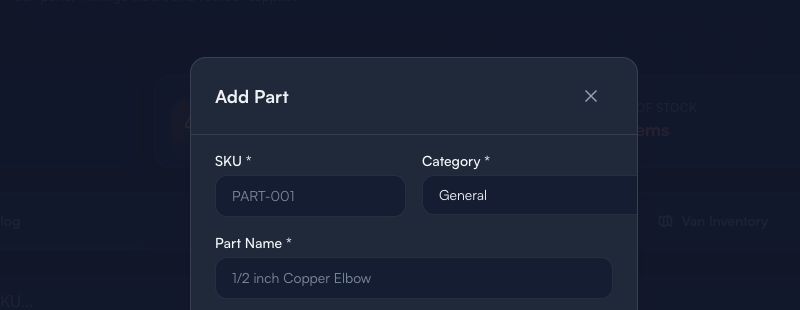
This is an empty product form with generic placeholders only. It does not show a live part, supplier, price, quantity, or customer data.
Before saving a new part:
- Confirm the SKU is unique and follows your team’s naming convention.
- Select the intended Category.
- Use a clear Part Name that a dispatcher and technician will recognize.
- Keep the description generic; do not add supplier credentials, private contract terms, or customer details.
2. Find the right stock view
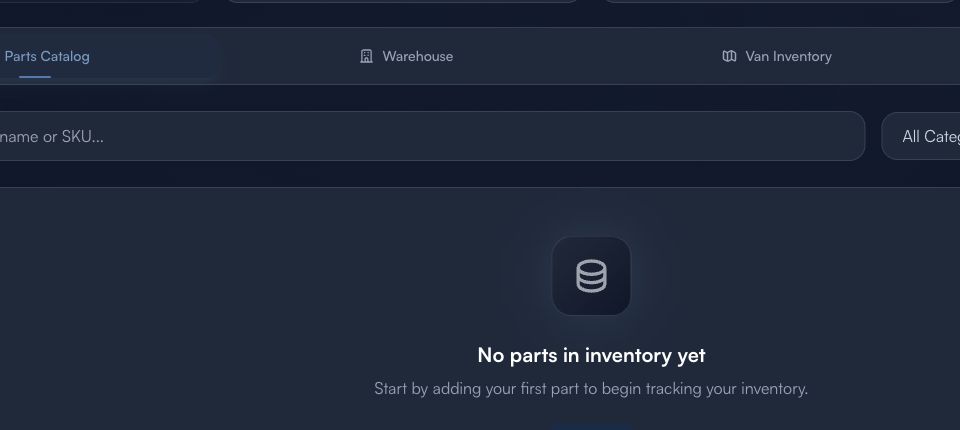
Use the screen map to choose the correct view:
Parts Catalog → Warehouse / Van Inventory → Purchase Orders
- Start in Parts Catalog to find an item.
- Check the physical context before acting: Warehouse or Van Inventory.
- Use Purchase Orders only through your team’s approved purchasing process.
3. Review before changing a quantity
Add Part → Verify identity and category → Count at the correct location → Route reorder for approval
- Correct part selected.
- Correct location selected.
- Count is based on a real check, not an assumption.
- Any exception has a documented owner.
- Reorder or cost decisions have required approval.
Limitations
Inventory data organizes stock information, but it does not prove physical count, delivery, vendor approval, cost accuracy, or availability. Confirm consequential stock and purchasing actions with a human.
Next: Guides & Tips